FAQ
Frequently Asked Questions
First steps
DIAGPROG5 REGISTRATION: WHERE TO FIND THE CONTROL NUMBER?
Cuntrol number is available in the DP5 App from ver. 2.0.3
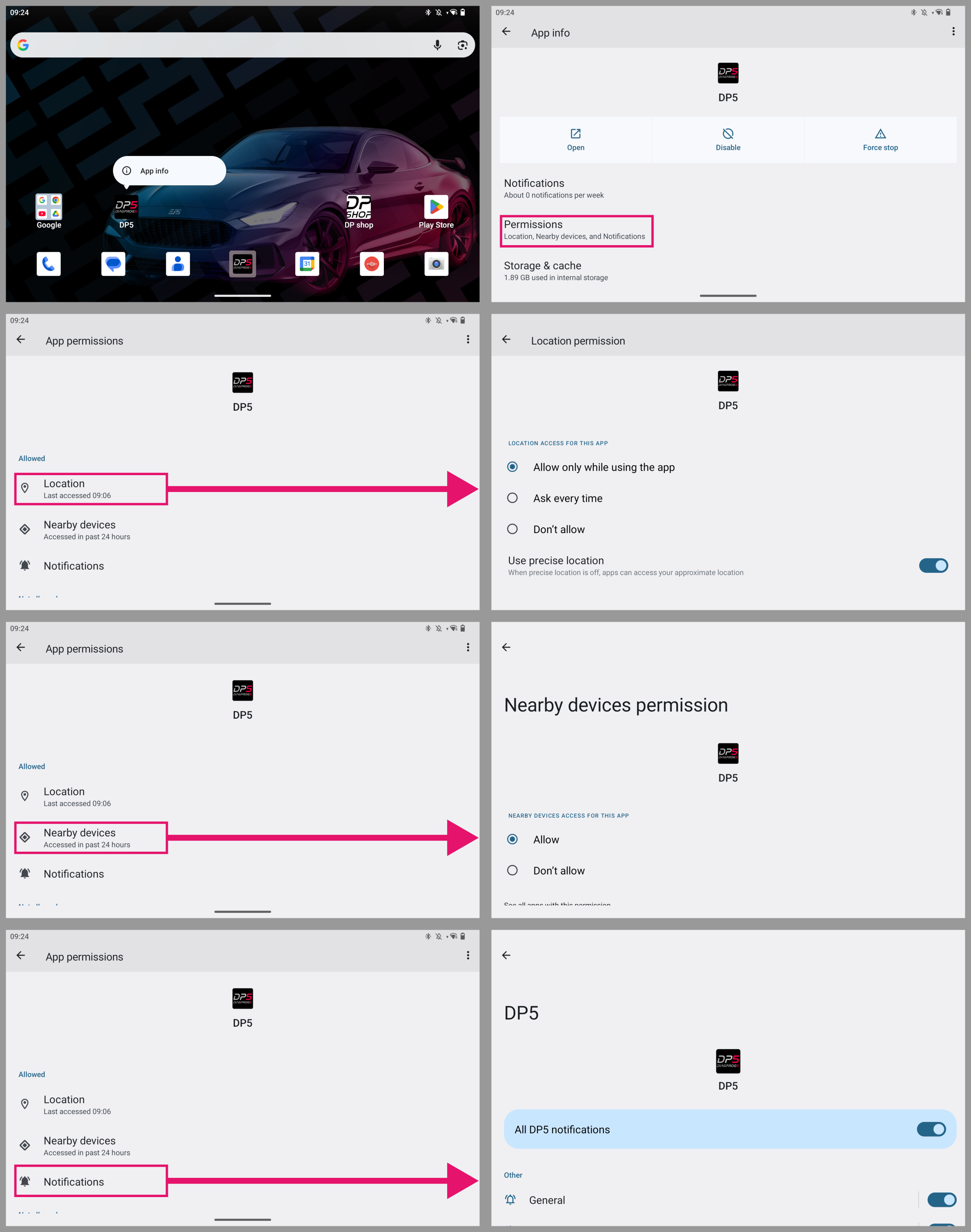
HOW TO CHANGE AND ADD APP PERMISSIONS
DATA DIRECTORY FOR THE DP5 APP’S FILES
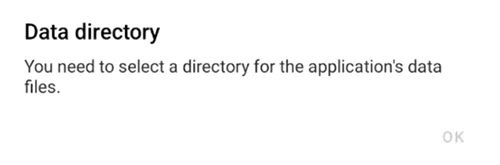
- You need to select a directory for the application’s data files.
- Create a directory where application data will be saved. It is recommended to create a DP5 folder.
HOW TO CONNECT (PAIR) ELP5 PRO-VCI WITH A TABLET
- Power on the ELP5 PRO – VCI.
- From the Bluetooth settings of the tablet select your VCI.
- In DiagProg5 App select [VCI MANAGER] button.
- Click [CONNECT DEFAULT VCI] to connect with desired ELP5 PRO – VCI.
- Correct connection will be indicated by LED flashing on the ELP5 PRO – VCI and VCI serial number shown in the App.
VCI CONNECTION ISSUE VIA BLUETOOTH
- In case of a Bluetooth connection issue, turn off WiFi on the tablet and restart the DP5 application.
EXCHANGE DP4: How to make License transfer from DP4 ?
How to transfer license from DP4 to DP5 - LICENSE TRANSFER INSTRUCTIONS
Working with DiagProg5
HOW TO UPDATE DP5 APPLICATION
- Open the Google Play Store app.

- In the top right corner, tap the profile icon.
- Tap Manage apps & devices.
- Tap the app you want to update.
- Tap [Update].
DIAGPROG5 UPDATE/ ACTIVATION
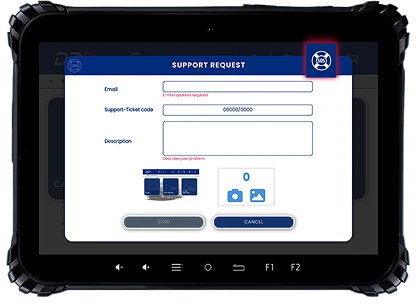
HOW TO SUBMIT A SUPPORT REQUEST
- Click the [SOS] icon on the TOPBAR.

- Accept the Consent for Active Technical Support.
- Fill out the Support Request Form with all necessary details.
- Press [SEND] button.
REMOTE SUPPORT (TEAMVIEWER)
In case of emergency, technical support can be obtained via the TeamViewer service. To use this option:
- Install TeamViewer QuickSupport and TeamViewer Universal Add-On on your tablet from the Play Store.
- Open QuickSupport app > settings > permissions > remote control feature > Enable Universal add-on.
- Set a date and time for a meeting with your representative.
- Open TeamViewer QuickSupport and provide “Your ID” to your representative.
- Accept your representative’s entry request.
Make sure that Wi-Fi is stable during the use of TeamViewer services and that the VCI is powered on.
HOW TO FIND CONNECTION DIAGRAMS
- Select required software from the DP5 menu.

- On the bottom right side click the [DESCRIPTION].
- In case of the lack of [DESCRIPTION] please click [DOWNLOAD] from the [UPDATE MANAGER] on the main screen to download necessary documentation.

FACTORY SETTINGS RESTORE (TABLET)
To restore to factory settings, follow the steps below:
- Select the icon labeled SETTINGS from the main menu of your tablet.
- Navigate to SYSTEM.
- Choose RESET OPTIONS.
- Select ERASE ALL DATA (factory reset).
- Confirm the reset by selecting a button [ERASE ALL DATA].
Following these steps should reset the device to its factory settings, removing all data and restoring it to its original state.
Need technical support?
- Click the [SOS] icon on the top menu bar.
- Accept the consent for active technical support.
- Fill out the form and click [SEND].